Rest Client in VS Code

A single application solution for when Postman is one application too many.
Due to the way Azure is delivered for the developer community at my place of work, all Internet facing systems need to be fronted by a Content Delivery Network. To ensure this rule is followed a scan is carried out to find any Public IP's. Any public IP's found which did not follow any form of exception process are passed on to the security team, where a suitable enforcer is dispatched to help the guilty party remediate the situation.
To enable me to do the requisite scan I just needed to make a rest call to the developer's subscription, pulling back any public IP's which may be present and the related resource(s). The requisite rest call was :
1GET https://management.azure.com/subscriptions/{subscriptionId}/providers/Microsoft.Network/publicIPAddresses?api-version=2019-09-01
The only downside was I needed to set values for my clientID, AppID and Client Secret. All of which would be in plain text and at risk of leaking to the big bad world if I didn't secure them. There are several places on the Internet where experts have given their respective take of how to secure this important credential set. Yes I could put them in something like Hashicorp's vault but i'd still need a credential of sort's to pull the information out at the time of consumption within the script
While looking for information on securing the credential set I came across a blog post by Geert. Geert is found over at Mobilefirstcloudfirst.net, in his blog he highlight's using the same Rest client for Visual Studio Code that i'm using. Alas Geert still had the credential set in plain text as part of the Rest client's environment variables.
As I spend most of the day in VS Code, this piqued my interest. I have my VSCode setup so that I'm already connected to the Azure tenant using the 'Azure Account' plugin and i can also use 'az' commands against the subscription using the Azure CLI tools. I just need the script to point to the relevant subscription and pull back my report.
My plan was to use what I had available to me, namely I was already authenticated to Azure so just needed a valid access/bearer token. My script then became one of calling Azure and grabbing the access/bearer token and pushing it out to the VSCode Settings.json file.
 1<#
 2Script Author     : Saquib
 3Script Name       : Get-Token.ps1
 4Script Date       : 20-01-2020
 5Script Purpose    : Get my Access/Bearer token from Azure and push it into the VSCode session environment variables.
 6#>
 7
 8$pathToSettingsFile = "C:\Users\Saquib\AppData\Roaming\Code\User\settings.json"
 9
10Write-Host "Getting Access Token from Azure"
11$Token = az account get-access-token | ConvertFrom-Json
12Write-Host $Token.accessToken
13
14$settingsFile = Get-Content -path $pathToSettingsFile | ConvertFrom-Json
15$settingsFile.'rest-client.environmentVariables'.local.token = $Token.accessToken
16$settingsFile | ConvertTo-Json -depth 32| set-content -path $pathToSettingsFile
17Write-Host "Access Token Stored"
18Exit
Like many colleagues I prefer the ability to click a button to do something, this can be achieved with a task within VSCode. To create a task is simply a matter of creating a file in the .vscode folder called 'tasks.json' with the following contents :
 1{
 2  "version": "2.0.0",
 3  "tasks": [
 4    {
 5      "label": "Get-Bearer",
 6      "type": "process",
 7      "windows": {
 8        "command": "powershell",
 9          "args": [
10            "-ExecutionPolicy",
11            "Unrestricted",
12            "-NoProfile",
13            "-File",
14            "${cwd}/.vscode/Get-Token.ps1"
15          ],
16      },
17      "linux": {
18        // no linux command structure needed unless you are on a Linux machine. In which case
19        // the windows code should run as long as you are running powershell core.
20      },
21      "presentation": {
22          "reveal": "always",
23          "panel": "new"
24      }
25    }
26  ]
27}
then to get the button in the task bar we leverage the tasks plugin by actboy168. Once this is installed you should see Get-Bearer appear in the task bar ( as highlighted by the yellow box in the following graphic )

which when clicked upon will grab the access/bearer token and put it into the settings.json file of vscode.

From here you can consume it as you wish.
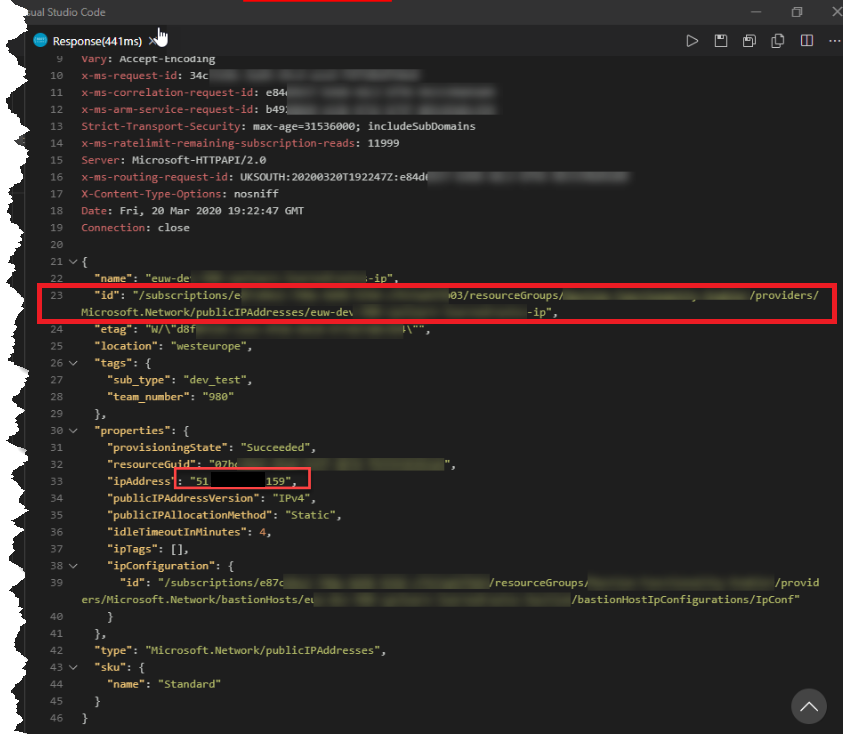
To close the loop: using the Rest Client with what we have built so far to get that public IP that should not exist ( and the resource to which it is attached if any as shown on line 23 in the response )
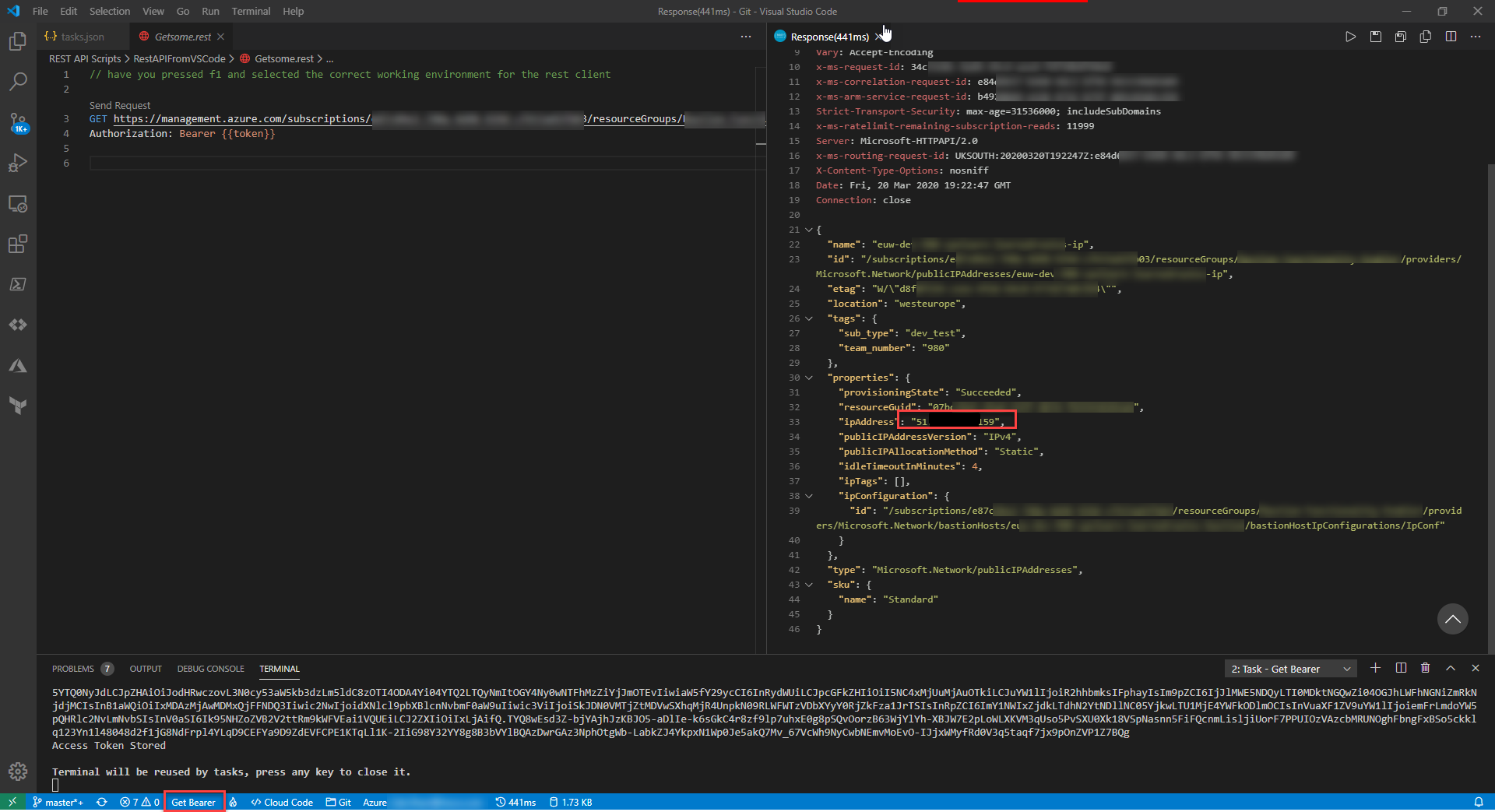
There you have it, ensure you are signed into Azure, click the 'Get Bearer' button ( highlighted in red below )

Within the script click 'Send Request' ( highligted in yellow )
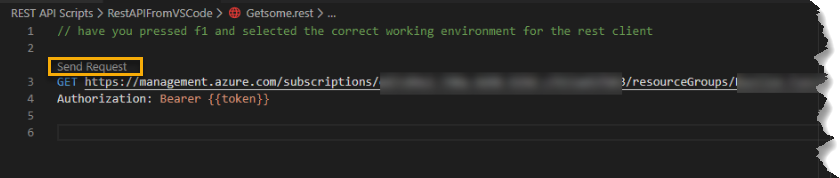
Finally we get a response showing the Public IP(s) within the target Subscription.